

Move or copy the configuration
Export the setup of your Orbit installation, or of one project, to a file, and import that file somewhere else, so you do not type the configuration again.
Who this is for
Section titled “Who this is for”System Admins. Only System Admins can export or import, and only with the authenticator (the code app) verified in the current session.
Use it when you:
- Move Orbit to a new installation. Export the whole installation, then import it into the new, empty Console.
- Copy a project to another installation. Export one project, then import it there. If the project should then live only in the new place, remove it from the old one afterwards (see Remove a project or environment).
- Make a demo copy. Export one project, for example
toolshop-retail, and import it under a new name such asorbit-demo, in the same installation or in a demo installation.
Run history never moves. The new place starts with no runs and no results.
Before you start
Section titled “Before you start”- A System Admin account with the authenticator set up, on both the source and the target Console. If a page says “Verify your authenticator first”, choose Verify now, enter the code and come back.
- On the target, the people who will get the invites must be reachable by email.
- Decide whether you need the secret values (see Secrets and the passphrase). If yes, prepare a passphrase of at least 16 characters and a safe place to keep it.
- Import only files from an installation you trust. The people in a file keep their system role, so a file can create System Admins.
The page is Admin, System, Configuration transfer. It has three parts: Export, Import and Past imports.
What a file carries
Section titled “What a file carries”A file (a .zip) holds the configuration: what you set up, not what happened.
| In the file | Never in the file |
|---|---|
| Customers, projects and their quality settings | Runs, results, attempts and artifacts (traces, screenshots, videos) |
| Teams, with their members and project roles | The test catalog, triage, failure groups and quarantine |
| People: name, email, system role, account expiry, job title, department, time zone, language | Releases, cycles, decisions, approvals, evidence and risks |
| Environments | Requirements (they have their own CSV import) |
| Workloads (repositories), with their environments and account needs | Reports, report snapshots and share links |
| Variables and profile overrides (the current version only) | Investigations, AI diagnoses and copilot conversations |
| Secrets: names always, values only on request | The audit log and usage |
| Test accounts (the password is a secret) | Stations, sites and enrolment codes |
| Run grants on restricted environments | Sign-in sessions and passwords |
| Project gate policies, release checklist templates, report schedules | Announcements, personal settings, notification preferences and saved views |
| Jira settings and Teams channels with their notification rules | Workload revisions (they come back from the repository) |
| System policies: appearance, authenticator rule, Station policy, AI settings and providers, email settings (installation scope only) | Older versions of variables and secrets |
Archived items keep their archived state. Report schedules keep their paused state. Release-bound gate policies and report schedules stay behind with their release.
Choose the scope
Section titled “Choose the scope”Under What to export you choose:
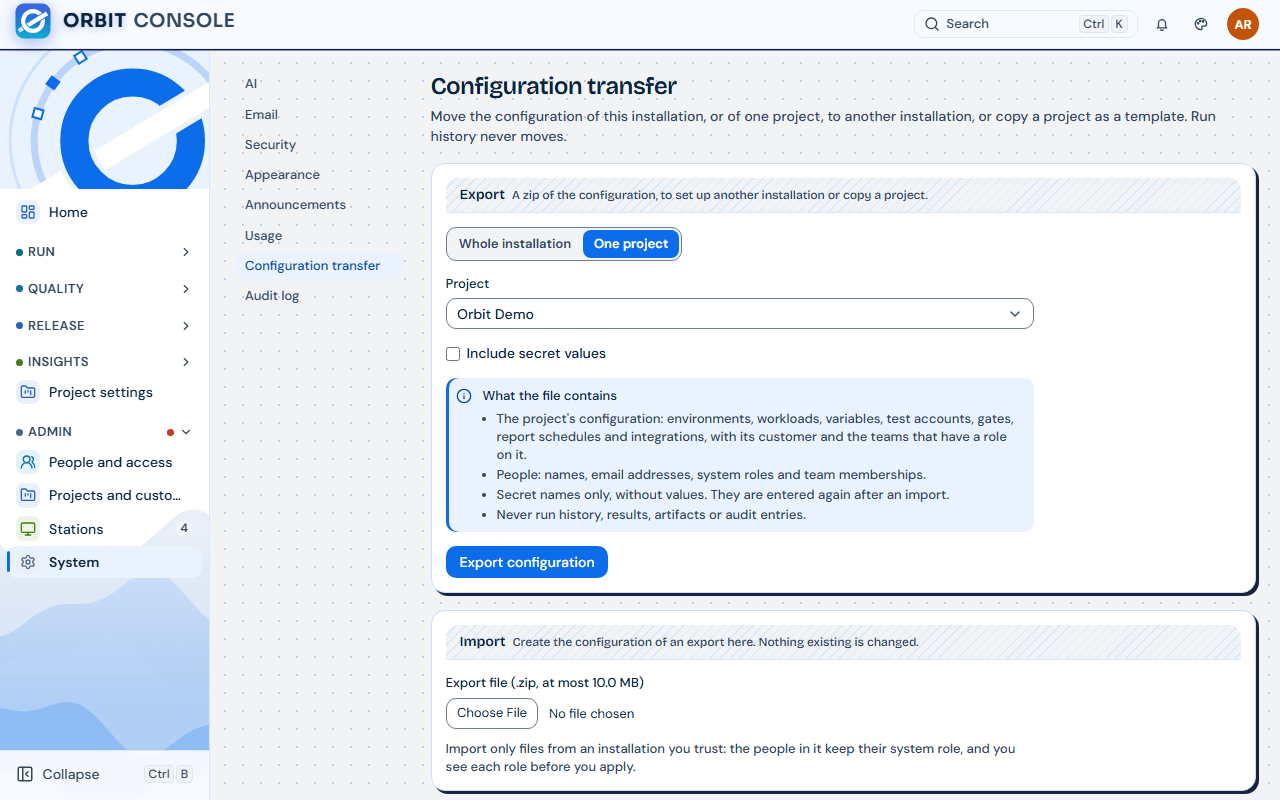
- Whole installation: every customer, project, team and person, and the system policies. Use it to move to a new installation.
- One project: one project with its customer, environments, workloads, configuration, and the people and teams it uses. The teams are the project’s own teams, the hand-made teams that have a role on it, and the teams that own its workloads. Their other projects stay out of the file. Use it to copy a project or make a demo copy.
You can also start a project export from the project: open Project settings, Overview and choose Export configuration…. The page opens with One project and that project already chosen.
Secrets and the passphrase
Section titled “Secrets and the passphrase”By default a file carries secret names only, without values. After an import, Orbit lists what is missing and you enter the values again.
Tick Include secret values to bring the values. This covers environment, repository and test account secrets, the Jira token, the Teams webhook addresses, AI provider keys and the email password.
The passphrase rules:
- At least 16 characters. Type it in Passphrase and again in Passphrase again.
- The values are encrypted with it inside the file. Anyone with the file and the passphrase can read them.
- Orbit does not keep it. Without it, the secrets of the file cannot be read, and nobody can recover them.
- The import asks for it to preview and to apply. A wrong passphrase writes nothing.
- Never send the passphrase together with the file. Use another channel, for example tell it by phone.
Use the values when you move a real installation with many secrets. Use names only for a demo copy, or when the target should get its own secrets.
Export
Section titled “Export”- Open Admin, System, Configuration transfer.
- Under Export, choose What to export: Whole installation or One project. For one project, pick it in Project.
- Leave Include secret values off, or tick it and fill in Passphrase and Passphrase again.
- Read the box What the file contains. It lists what goes into the file, in plain words.
- Choose Export configuration.
- The result shows the file name (
orbit-config-<installation or project>-<date>.zip), its size, its scope and the counts per kind. Choose Download right away. - Choose Done.
The download link is shown only once and works for 1 hour. The file stays on the server for 10 hours, then Orbit deletes it. Each export is written to Admin, System, Audit log, with whether secrets were included. The passphrase is never written anywhere.
Keep the file safe, then delete it
Section titled “Keep the file safe, then delete it”The file holds the email addresses of your people and the setup of your projects. With secret values, it also holds them, encrypted.
- Keep it only where people who may see it can reach it, for example a protected folder. Not in a shared chat or a ticket.
- Keep the passphrase apart from the file.
- Once the import is done and checked, delete the file. Empty the recycle bin as well, and delete copies in email or downloads.
Import
Section titled “Import”Do this on the target Console: the new installation, or the same one for a copy.
1. Upload the file
Section titled “1. Upload the file”- Open Admin, System, Configuration transfer.
- Under Import, choose the file in Export file (.zip, at most 10 MB).
- The file uploads in parts, with a progress bar. When it is done, the page shows the scope, who exported it and when, the Orbit version it came from, its secrets and the counts per kind.
2. Preview the plan
Section titled “2. Preview the plan”- If the file has secret values, enter Passphrase of the secrets.
- Choose Preview the import. Nothing is written yet.
- The Plan appears, grouped by kind (System policies, Customers, People, Teams, Projects, Environments, Workloads and so on). Each item has one action:
| Action | What it means |
|---|---|
| Create | The item is new here and will be created. |
| Reuse | It exists here already and stays exactly as it is. A customer with the same short name, a person with the same email, a system policy already set. |
| Conflict | Its short name (slug) is already taken here. You decide: rename or skip. |
| Skip | It will not be created. The line says why. |
Groups with conflicts, and the People and System policies groups, open by themselves. Read the People group before you apply: each new person shows the system role they will get (Member or System Admin). A person who exists already shows “existing account: keeps its role”.
3. Decide each conflict
Section titled “3. Decide each conflict”Only creating is possible. An import never changes or overwrites what exists here.
- Rename. Projects and hand-made teams with a taken slug can be renamed. Fill in New slug (lowercase words joined by dashes, 2 to 50 characters) and New name. Everything that belongs to it follows the new name.
- Skip. Choose Skip on the item. What depends on it is skipped too; its line says, for example, “Skipped with projects “toolshop-retail”, which it needs.” Choose Include to undo. You can also skip items marked Create that you do not want.
- Some items cannot be renamed: “This one cannot be renamed: skip it to go on.”
After each change choose Preview again. Apply stays disabled until the plan matches your decisions and every conflict is answered.
Things the plan decides by itself:
- Workloads. A repository can be used by only one workload in an installation. When this installation already has a workload on the same repository, or with the same slug, the workload is skipped. So a copy of a project inside the same installation gets its environments, variables and test accounts, but not its workloads, nor what belongs to them (repository variables, profile overrides, repository secrets).
- Secrets without a value. With a names-only file, every secret shows Skip: “The file has no value for this secret, so it is not written. Enter it again after importing.”
- Report schedules whose environments are all left out are skipped, so they do not report on every environment instead.
- Project teams. The managed teams of a project (Viewer, QA Engineer, QA Lead, Project Admin) are created again for the new project, with their members.
- System policies that exist here are kept. The System policies group shows the authenticator rule of both sides, for example “MFA required: source yes, here no”.
4. Apply
Section titled “4. Apply”- Choose Apply. The dialog “Apply this import?” says how many items it creates. Choose Apply import.
- A progress bar and the list of kinds show what is done. Keep the page open.
- Orbit works in short steps and continues by itself until the import is Done.
If the page closes, the network drops or the server stops part-way, nothing is lost. What was created stays. Open the import under Past imports, then choose Continue applying. It continues with the decisions of its preview. If the file has secret values still to be written, enter the passphrase again.
At the end, a table shows per kind what was Created, Reused and Skipped (and Of which renamed when you renamed something), followed by the checklist After importing.
Each import is written to Admin, System, Audit log, and so is each item it creates.
People created by an import
Section titled “People created by an import”People who did not exist here are created without an email and without a password. Nobody is mailed during the import, so the new installation can be finished first. They cannot sign in until you send the invite.
- On Admin, People and access, Users they show Not invited yet. Tick Not invited yet (…) to list only them.
- Choose Send invite on a row to invite one person.
- Choose Send invites to all not invited, then Send invites, to invite everyone. Each gets an email to set their password.
- If some fail, the page says “Some invites were not sent”. They stay under Not invited yet: send again later, or one by one.
- The project’s people list also marks them Not invited yet.
They keep the system role, account expiry and state of the file. An account whose expiry date has passed is expired here too: extend it on Users. Deactivated people come in deactivated and get no Send invite button. Imported System Admins must set up the authenticator at their first sign-in while the authenticator rule is on.
After importing
Section titled “After importing”The summary of a finished import ends with this checklist. Work through it before people start using the new place.
- Install the GitHub App on the repositories of the imported workloads, from Project settings, Workloads. The repositories are linked again this way, and their revisions come back from the repository.
- Enrol the Stations that run the tests, from Admin, Stations. Stations belong to the old Console address and never move. See Install the Orbit Station.
- Enter the missing secrets from each project’s readiness checklist (Project settings, Overview), and the AI provider keys and the email password on Admin, System, AI and Email.
- Turn on Jira and Teams on Project settings, Integrations after entering their credentials. Jira without a token and Teams channels without a webhook address came in turned off. A Teams channel whose workloads were all left out also came in turned off.
- Send the invites (see above). The checklist links People not invited yet.
- Check the authenticator setting. System policies that already existed here were kept, not replaced by the ones of the file. A new installation always has an authenticator setting already, so the file’s setting is never copied: check it on Admin, System, Security (Authenticator code, Turn on or Turn off).
Then run a first test on each project, as in Onboard a customer project.
Limits
Section titled “Limits”| Limit | Value |
|---|---|
| Download link of an export | Shown once, works 1 hour |
| Export file kept on the server | 10 hours |
| Size of a file you import | At most 10 MB |
| An uploaded file not finished | Removed after 10 hours; upload it again |
| Passphrase | At least 16 characters |
| Merge or update existing items | Not possible: create only |
| Automatic undo | None. The preview is the guard. |
| Run history, results, artifacts, audit | Never moved |
| Files from a newer Orbit | Refused until the target is updated |
A real configuration is far below these limits. If an export is refused as too large, export one project at a time.
What can go wrong
Section titled “What can go wrong”| You see | Why | What to do |
|---|---|---|
| “Verify your authenticator first” | Configuration transfer needs the authenticator code in this session. | Choose Verify now, enter the code, come back. |
| “Only System Admins can transfer configuration.” | Your account is a Member. | Ask a System Admin. |
| “Use at least 16 characters (… so far).” or “The two passphrases do not match.” | The passphrase is too short, or the two fields differ. | Type a longer passphrase, the same in both fields. |
| The download link does not work | The link is shown once and works 1 hour; the file is deleted after 10 hours. | Export again. |
| “Choose the .zip file an Orbit export produced.” | The chosen file is not a .zip. |
Choose the downloaded export file. |
| “The file is larger than 10 MB, the most an import takes.” | The file is too big. | Export one project at a time. |
| “This file is not an Orbit configuration export, or it is damaged.” | The file is not an export, or it was changed. | Download the export again. Do not edit the file. |
| “This file comes from a newer Orbit. Update this installation, then import it again.” | The source runs a newer Orbit than the target. | Update the target, then import again. |
| “The configuration is too large to export or import in one file.” | Very large configuration. | Export one project at a time. |
| “The passphrase does not open the secrets of this file. Nothing was written.” | Wrong passphrase. | Enter the passphrase chosen at the export. If it is lost, export again, with a new passphrase or without values. |
| “Your decisions changed since the preview. Preview again before you apply.” | You renamed or skipped something after the last preview. | Choose Preview again. |
| “2 conflicts still need a new slug and name, or a skip.” | Some conflicts have no answer yet. | Rename or skip each one. |
| “Nothing would be created.” | Everything is reused or skipped. | Nothing to do; the configuration is already here. |
| “The new slug is taken here or by another item of the file. Choose another one.” | The new slug is also taken. | Choose another slug. |
| “Something was created here since the preview and now conflicts. Preview again.” | Someone created an item with the same slug after your preview. | Choose Preview again and decide the new conflict. |
| “This import is already being applied elsewhere. Wait a minute, then continue applying.” | The import runs in another tab or by another admin. | Wait, then Continue applying. |
| “The import stopped part-way. What it created stays. Continue applying to create the rest.” | The server stopped in the middle. | Continue applying. |
| “The sign-in service did not answer while creating accounts. What was created stays. Continue applying to go on.” | The sign-in service did not answer while creating people. | Continue applying a bit later. |
| “This Console cannot create accounts right now: …” | The target Console is not set up to create accounts. | Ask the person who runs your Orbit installation. |
| “The uploaded file was removed after 10 hours. Upload it again.” | The upload was older than 10 hours when you went on. | Choose Import another file and upload again. |
| “Part of the upload did not arrive.” or “The upload does not match the size of the file.” | The upload broke. | Upload the file again. |
| “The import failed” | An item could not be created. The line says why. | What was created before stays. Check it, or delete it by hand. Then import again: what exists now is reused or conflicts. |
| A workload is missing after the copy | Its repository is already used by a workload here. | Expected inside one installation. Use a copy in another installation if you need the workloads too. |
| People cannot sign in | They were created without an invite. | Send the invites (see above). |
| Jira or Teams sends nothing | They came in turned off. | Enter the credentials and turn them on, on Project settings, Integrations. |
Values to record
Section titled “Values to record”| Key | Where it is found | Keep |
|---|---|---|
| Passphrase of the secrets | You choose it at the export | Secret. Shown once (Orbit never shows or keeps it). Keep it in a password manager, apart from the file, until the import is checked. |
| Export file name | The export result, and the downloaded file | Not secret, but the file holds email addresses (and encrypted secrets): delete it after use |
| Import, its state and summary | Admin, System, Configuration transfer, Past imports | Not secret |
| New slugs and names you chose | The plan, and the summary (Of which renamed) | Not secret. You need them in manifests (team:) and when you tell people where the copy is. |