

Project Admin guide
This page lists the work of a Project Admin and where each task lives in Project settings. The first setup of a project has its own guide; this page covers the work that follows.
Who this is for
Section titled “Who this is for”- Project Admins: the people who set up and look after one project.
- System Admins, who have every Project Admin right on every project. Their own tasks are in System Admin guide.
A Project Admin can do everything a QA Lead can (see QA Lead guide), plus: manage environments and run grants, variables and secrets, workloads, integrations and people, delete run artifacts, delete releases and cycles, and reset test data. The full table is in People and roles.
Before you start
Section titled “Before you start”- You need the Project Admin role on the project.
- Choose the project in the project switcher at the top of the page, then open Project settings (last item of the menu).
- For a new project, start with Onboard a customer project: it walks through the environment, the repository, the configuration, people and the first run with Guide me.
Project settings at a glance
Section titled “Project settings at a glance”| Section | What it holds | Who changes it |
|---|---|---|
| Overview | The setup checklist, Guide me, the project Details, and the Test data danger zone. | Details: System Admins. Reset: Project Admins and System Admins. |
| Environments | The systems under test, their health, maintenance and run access. | Project Admins |
| Workloads | The test repositories, where they may run, profile overrides, artifact uploads and account needs. | Project Admins (profile overrides: QA Leads too) |
| Variables and secrets | The values the tests read, per project, environment or repository. | Project Admins |
| Test accounts | Shared sign-ins that runs lease one at a time. | Project Admins |
| Integrations | Jira, Microsoft Teams and AI for this project. | Project Admins |
| People | Who is on the project and with which role. | Project Admins |
| Data reset | Remove run history; the list of past resets. | Project Admins (more levels for System Admins) |
Every member can open Project settings. A section you may not change says so, with the names of the people to ask.
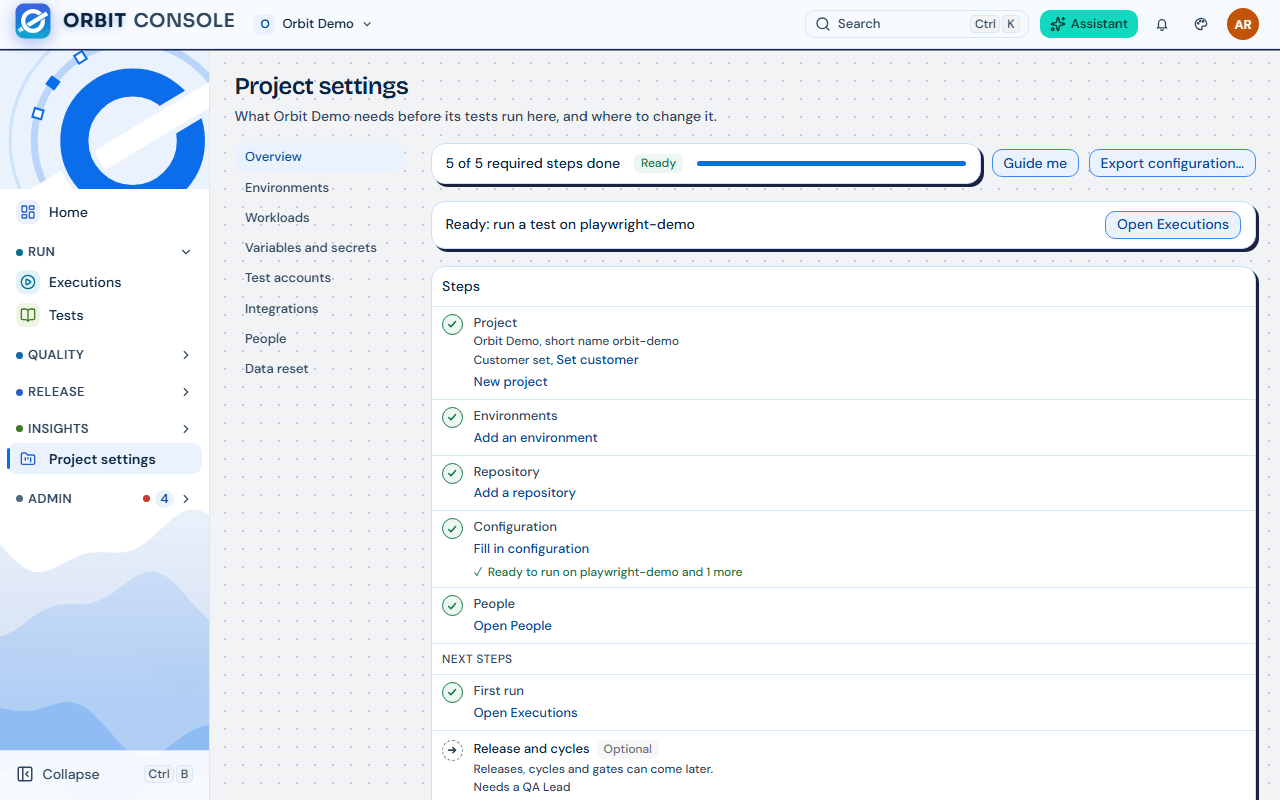
The project details
Section titled “The project details”Overview, Details shows the Name, Short name, Time zone, Keep artifacts for and Customer. The time zone sets release windows and report days. Retention decides when traces, screenshots and videos are deleted (results stay). Only a System Admin changes these values; ask one if something is wrong.
Manage environments
Section titled “Manage environments”Open Project settings, Environments.
Add or change an environment
Section titled “Add or change an environment”- Choose Add environment (or Edit on a row).
- Fill in the Name, the Kind (Development, QA, Staging, UAT or Production-like), the Time zone and, if you like, the Health check URL.
- Under Advanced: the Short name (used in links and by the repository manifest; fixed once created) and the Offline grace (days): how long a Station may run without reaching the Console. 0 turns offline runs off for this environment.
- Tick Restricted for an environment close to production: only Project Admins may run there, plus people with a run grant.
- Choose Add environment (or Save environment).
Run access on a restricted environment
Section titled “Run access on a restricted environment”On the environment’s Edit panel, part Run access: pick a person under Grant someone… and choose Grant. Revoke takes it away. The change reaches their Station within 5 minutes. Only people with the QA Engineer role or higher can be granted. More in People and roles.
Health and maintenance
Section titled “Health and maintenance”Each row shows the environment’s health: Up, Degraded, Down, Unknown or Maintenance. Health comes from idle Stations, run starts and an optional Console probe. Unknown means nobody looked in the last 30 minutes, not that it is down. A down environment does not block runs.
Choose the health chip to open the details: 30 days of samples, per site, and the incidents. There a Project Admin can:
- set the Slow above (ms) threshold and tick Probe from the Console too, then Save settings;
- start a maintenance window: choose Until (at most 14 days) and a Note, then Start maintenance. While it lasts, the environment shows Maintenance, no incident opens and nobody is notified. End maintenance stops it early.
Archive, delete or remove
Section titled “Archive, delete or remove”- Archive hides the environment: Stations stop offering it and no new runs start on it. Its runs, cycles and reports stay visible. Restore brings it back.
- Delete removes an environment that nothing uses yet. If it still has runs or other records, Orbit lists them and offers to archive it instead.
- Reset test data of this environment… removes its run history (see Reset test data).
- Remove environment… removes the environment with everything in it. Only System Admins can: see Remove a project or an environment.
Manage workloads
Section titled “Manage workloads”A workload is one test repository. Open Project settings, Workloads.
- Add a repository registers a new one. The steps, the repository check and the manifest are in Onboard a customer project.
- Each workload shows its repository and branch, and the team that owns it. Its name and team come from its manifest and follow its newest version.
On each workload:
| Part | What it does |
|---|---|
| May run on | Tick the environments the workload may run on. |
| Tracked ref | The branch the test list (catalog) follows; by default the repository’s default branch. A run on another branch still counts as a normal result but does not change the test list. Change tracked ref sets another branch. |
| Refresh dependencies | Shown when the workload installs private repositories. Use it once after the workload is registered, and again when its lockfile gains a private repository. |
| Profile overrides | How each profile of the manifest runs on each environment: Projects, Grep, Workers, Retries and Timeout (min). QA Leads can change them too. |
| Artifact uploads | Which files Stations upload (HTML report, Station log (redacted), Traces, Videos, Screenshots, Other attachments): Always, Failed and flaky tests or Never. Use the default goes back to the default policy. Choose Save policy. |
| Archive / Restore | Stations stop offering an archived workload and no new runs start. Its executions and tests stay visible. |
| Delete | Removes a workload that has no history. If it has runs, Orbit offers to archive it instead; reset its test history first if the runs must go. |
Below the list, Account needs says which test accounts each workload needs on each environment (see Test accounts).
People who write the tests: see Workload author guide.
Variables and secrets
Section titled “Variables and secrets”Open Project settings, Variables and secrets.
- Choose the scope under Applies to: “Whole project (every environment)”, “Environment X (every repository on it)” or “Repository R on X (only this repository)”. A repository value overrides the environment value, which overrides the project value.
- On Variables, type the values the manifests ask for and choose Save variables. Variables are plain values, visible to project members.
- On Secrets (only for an environment or a repository scope), choose Set value, type the value and choose Save value. A secret is write-only: nobody can read it back. Add a custom secret adds one that no manifest asks for.
- History and changes shows who changed what.
Put passwords and tokens in Secrets, never in Variables. The full rules, and what to do when a secret was typed as a variable, are in Onboard a customer project.
Environments, Workloads by environment shows whether each workload has the variables and secrets its newest manifest needs on each environment.
Test accounts
Section titled “Test accounts”Many tests sign in to the system under test. When several runs go at the same time, they must not share an account. Orbit keeps a pool of accounts per environment and role, and leases one to one run at a time.
Open Project settings, Test accounts. Pick the environment at the top. The section has four tabs: Accounts, Live leases, Lease history and Workload needs.
Add an account
Section titled “Add an account”- On Accounts, choose Add account.
- Pick the Environment and the Role (for example
approver), and type the Username. Add a Label (optional) people recognise, such as “Approver 2”. - Type the password in Password (optional) and Type it again. The password is write-only: nobody can read it back. Without one, runs cannot lease the account.
- Optionally set Password expires on (optional) so Orbit warns before it expires.
- Choose Add account.
On an account, Manage offers Edit, a new password (Save password; a run holding the account keeps the old one until its next lease), Mark locked out, Disable, Mark active, Archive and Restore. Force release frees an account a run still holds.
Say what each workload needs
Section titled “Say what each workload needs”- On Workload needs, pick the workload and choose Add role.
- Pick the Role and how many Accounts a run needs. The aliases are optional: they rename the variables the test reads.
- Choose Save needs.
A workload with no needs keeps using the environment secrets, as before. Stations older than 0.7.0 can no longer run a workload once it needs accounts on an environment, so set needs only after every Station that runs it has updated.
Live leases shows which run holds which account right now. A Station renews its lease every 30 seconds; a lease it stops renewing ends within 2 minutes. Lease history keeps 90 days.
Teams and roles
Section titled “Teams and roles”Open Project settings, People. There you add a person (Add person), change their role or expiry (Edit), and remove them (Remove). The project keeps one managed team per role for you. The steps and limits are in People and roles.
Things to know:
- You can give a role up to your own, and you cannot change yourself.
- The last Project Admin cannot be removed.
- You can create up to 10 new accounts a day; picking an existing person does not count.
- New accounts you create always expire, at most 365 days ahead.
- People added through a hand-made team show “via team …”: ask a System Admin to change them.
For a person who cannot sign in, lost their authenticator or left the company, see People account recovery and ask a System Admin.
Notifications for the project
Section titled “Notifications for the project”Two settings decide what people hear:
- Per project, in Quality settings (open Failures, the ⋯ menu, Quality settings), section Notifications: which new errors, pass rate drops and flaky rises are worth a notification. QA Leads and Project Admins change it. See QA Lead guide.
- Per person, on Notifications, tab Settings: each person ticks In Orbit and By email for each kind.
Email reaches people only once a System Admin has set up email in Admin, System, Email. Teams messages go through the project’s integrations (below).
Integrations
Section titled “Integrations”Open Project settings, Integrations. Only Project Admins configure integrations.
Connect Jira
Section titled “Connect Jira”- Under Jira Cloud, fill in the Jira site (your Jira address), the Account email and the API token of the Jira account Orbit uses.
- Choose Save Jira settings, then Test connection.
- Choose the Jira project and the Issue type from the lists (Type it instead if Jira cannot list them).
- Optionally add Labels (“orbit” is always added), Components, and a Jira priority for each test priority.
- Optionally tick Create an issue automatically for a new error signature, limited to some test priorities and environment kinds. Orbit keeps one issue per error.
- Choose Save Jira settings.
QA Leads then create issues from failing results. The token is stored and never shown again; leave the box empty to keep it.
Connect a Microsoft Teams channel
Section titled “Connect a Microsoft Teams channel”- In Teams, create a Workflows webhook for the channel and copy its URL.
- Under Microsoft Teams, choose Add a Teams channel. Fill in the Channel name and the Workflows webhook URL.
- Tick the events to send, for example “A P1 test failed”, “A quality gate failed”, “A risk was proposed”, “A failure group passed its SLA” or “An environment went down (once per incident)”. Only for (empty = all) limits the channel to some environment kinds and test priorities. Daily digest sends one summary a day at the Digest time.
- Turn Channel on, save, and choose Send a test message.
Messages of the same kind within 15 minutes are folded into one. Recent deliveries lists what was sent; Retry now sends a failed message again. QA Leads can also post scheduled reports to a channel.
AI for this project
Section titled “AI for this project”Under AI features, Use AI with this project’s data turns AI diagnosis, summaries and the assistant on or off for this project. It works only when a System Admin has turned AI on for Orbit.
Reset test data
Section titled “Reset test data”Sometimes the run history is wrong: trial runs, a broken setup, a demo before go-live. A Project Admin can remove the run history of the whole project, one environment or one workload, and keep the configuration.
- Open Project settings, Data reset (or Overview, Test data), and choose Reset test data….
- Choose the Scope (Whole project, an Environment or a Workload) and read What is removed and What is kept.
- Choose a Reason and confirm.
The data leaves every list at once and is removed for good after 7 days. Until then you can cancel. The full steps, the export and what other people see are in Reset test data. Removing a whole project or environment is for System Admins: Remove a project or an environment.
What can go wrong
Section titled “What can go wrong”| You see | Why | What to do |
|---|---|---|
| “Only Project Admins open …” on a section | Your role on this project is lower. | Ask one of the people the page names. |
| The Details fields are read only | Only System Admins change the project details. | Ask a System Admin. |
| A workload is missing on the Station | It is archived, or not ticked under May run on for that environment. | Restore it or tick the environment. |
| A run fails because a value is missing | A variable or secret the manifest needs is not set on that environment. | Check Workloads by environment on Environments, then fill it in Variables and secrets. |
| “The Station could not read a repository the workload needs” | A private repository the workload installs cannot be read. | Choose Refresh dependencies on the workload. If it repeats, ask a System Admin. |
| Runs wait for an account | Every account of the role is leased, locked out or disabled. | Look at Live leases; add accounts or Force release a stuck lease. |
| A test account is refused by the system under test | Its password expired or changed. | Set the new password on the account; mark it active again. |
| Jira Test connection fails | Wrong site, email or token, or the token expired. | Make a new API token in Jira and save it again. |
| Teams messages do not arrive | The webhook URL changed or the channel is off. | Look at Recent deliveries, fix the URL, then Retry now. |
| Nobody gets emails | Email is not set up for Orbit, or people turned email off. | Ask a System Admin to check Admin, System, Email. |
| An error code appears | See its meaning and what to do. | Error codes reference. |
More answers: FAQ.
Values to record
Section titled “Values to record”| Value | Where you find it | Secret? |
|---|---|---|
| Jira site, project key and issue type | Your Jira; Integrations, Jira Cloud | Not secret |
| Jira API token | Made in Jira for the account Orbit uses | Secret. Keep it in your password manager. Orbit stores it and never shows it again. |
| Teams Workflows webhook URL | Teams, the channel’s Workflows | Secret. Anyone with it can post to the channel. |
| Test account usernames, roles and environments | Test accounts, Accounts | Not secret |
| Test account passwords | From the owner of the system under test | Secret. Keep them in your password manager; Orbit never shows them again. |
| Secret values (passwords, tokens, keys) | From their owners | Secret. Keep them in your password manager before you enter them. |
| Names of the variables and secrets per environment | Variables and secrets | Not secret |